---
title: How to delete QRQR app account
description: Learn how to delete your QRQR - QR Code® Reader account, what data will be erased, important precautions, and troubleshooting steps if you can’t log in or complete deletion.
---
[Skip to content](https://support.qrqrq.com/en-us/how-to-delete-qrqr-app-account#main-content)
- [English - United States](https://support.qrqrq.com/en-us/how-to-delete-qrqr-app-account)
- [日本語](https://support.qrqrq.com/ja/how-to-delete-qrqr-app-account)
English - United States
Show submenu for translations
Open main navigation
Close main navigation
- - [English - United States](https://support.qrqrq.com/en-us/how-to-delete-qrqr-app-account)
- [日本語](https://support.qrqrq.com/ja/how-to-delete-qrqr-app-account)
English - United States
Show submenu for translations
- Contact us
Contact us
How can we help you?
- There are no suggestions because the search field is empty.
1. [QRQR](https://support.qrqrq.com/en-us?hsLang=en-us)
2. [QRQR - QR Code Reader](https://support.qrqrq.com/en-us/qrqr-qr-code-reader?hsLang=en-us)
3. [How to use](https://support.qrqrq.com/en-us/qrqr-qr-code-reader?hsLang=en-us#how-to-use)
# How to delete QRQR app account
If you no longer need your QRQR - QR Code® Reader account, you can delete it.
Please review the [precautions](https://support.qrqrq.com/hc/en-us/articles/33407252984729-How-to-delete-QRQR-app-account?qrqrManagerUserId=noId&service=qrqr_manager&hsLang=en-us#h_01HZPHW0XFKK925X0MFVGDTJAS) and follow the [account deletion steps](https://support.qrqrq.com/hc/en-us/articles/33407252984729-How-to-delete-QRQR-app-account?qrqrManagerUserId=noId&service=qrqr_manager&hsLang=en-us#h_01HZPHW9GA99Q3Y1XNY73Y8Q43) to delete your account.
### Information Held by the Service and Information to be Deleted
QRQR app holds the following information associated with your account.
This information will be deleted along with the deletion of your account.
- Registered email address
- App settings
- Added channels and messages
- QR code scan and creation history
- Backup data
※Backup data will be deleted 2 weeks after the last backup, regardless of account deletion.
#### Precautions for Account Deletion
Once an account and its associated information are deleted, they cannot be restored for any reason.
Please be cautious when deleting your account.
Also, note that this is separate from your QRQR Manager account.
#### Account Deletion Steps
The QRQR app is required to delete your account.
If you have already uninstalled it, please reinstall the app.
1. Tap "Settings" at the bottom left of the screen.
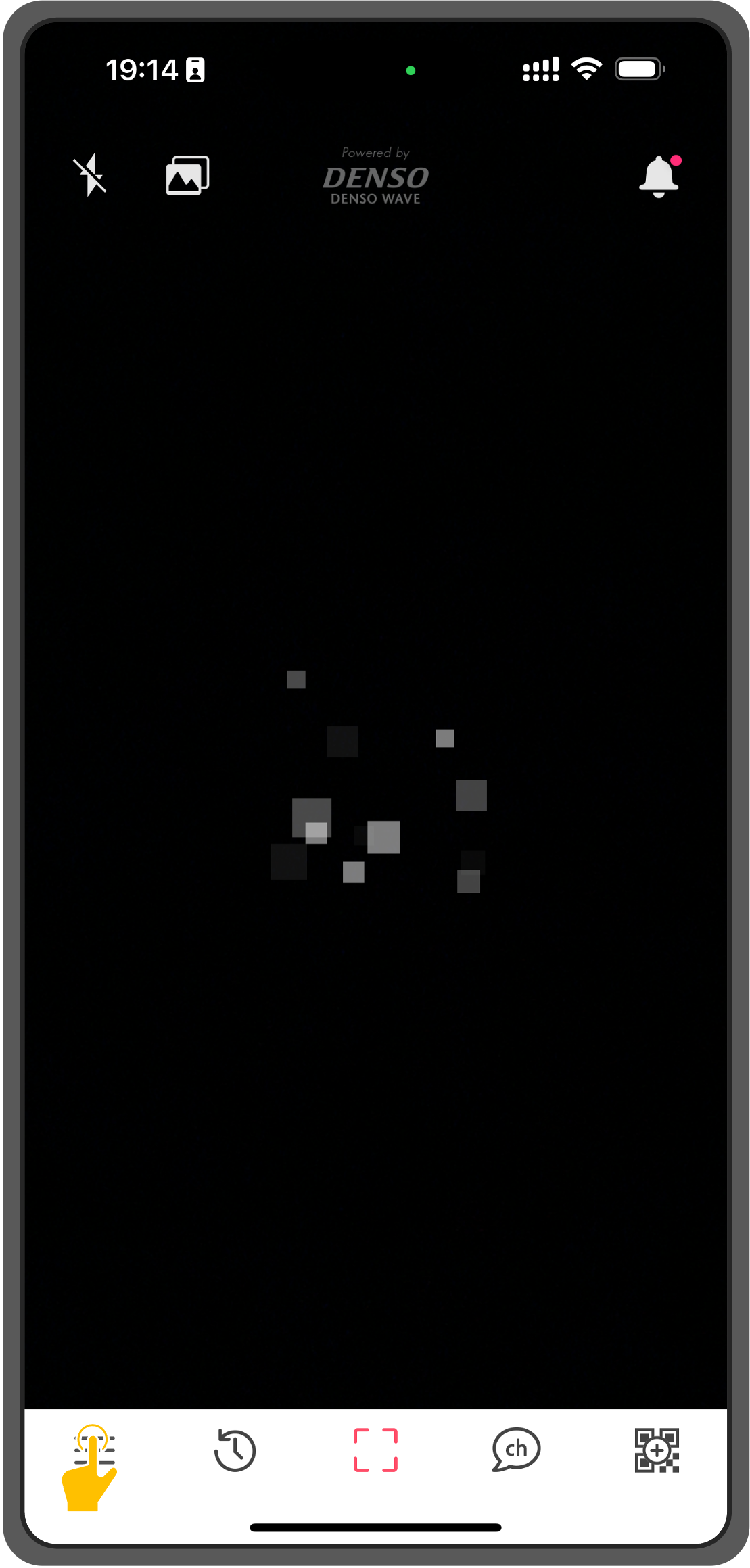
2. Tap "Account" \> "Delete account".
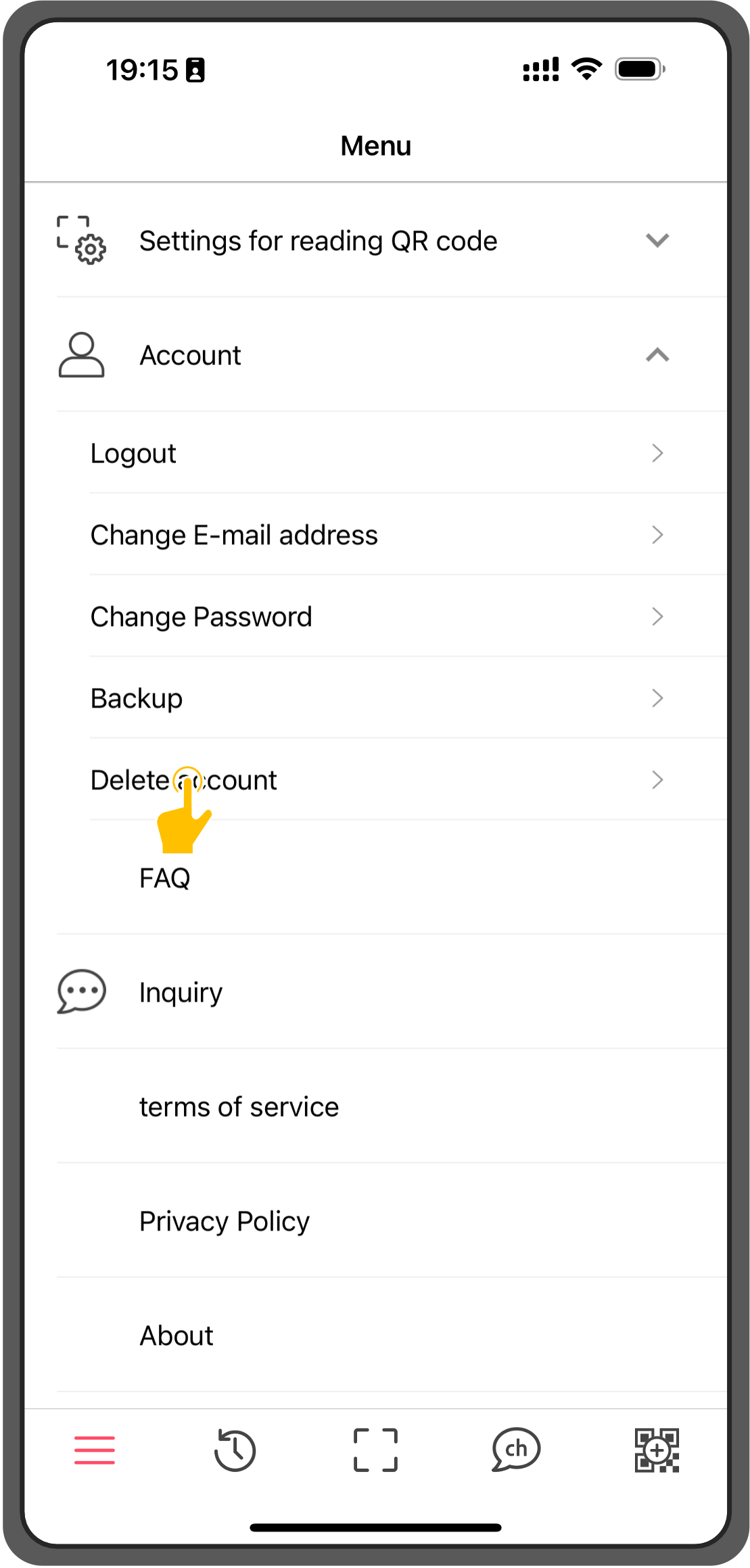
3. Review the contents and tap "Next" if there are no issues.
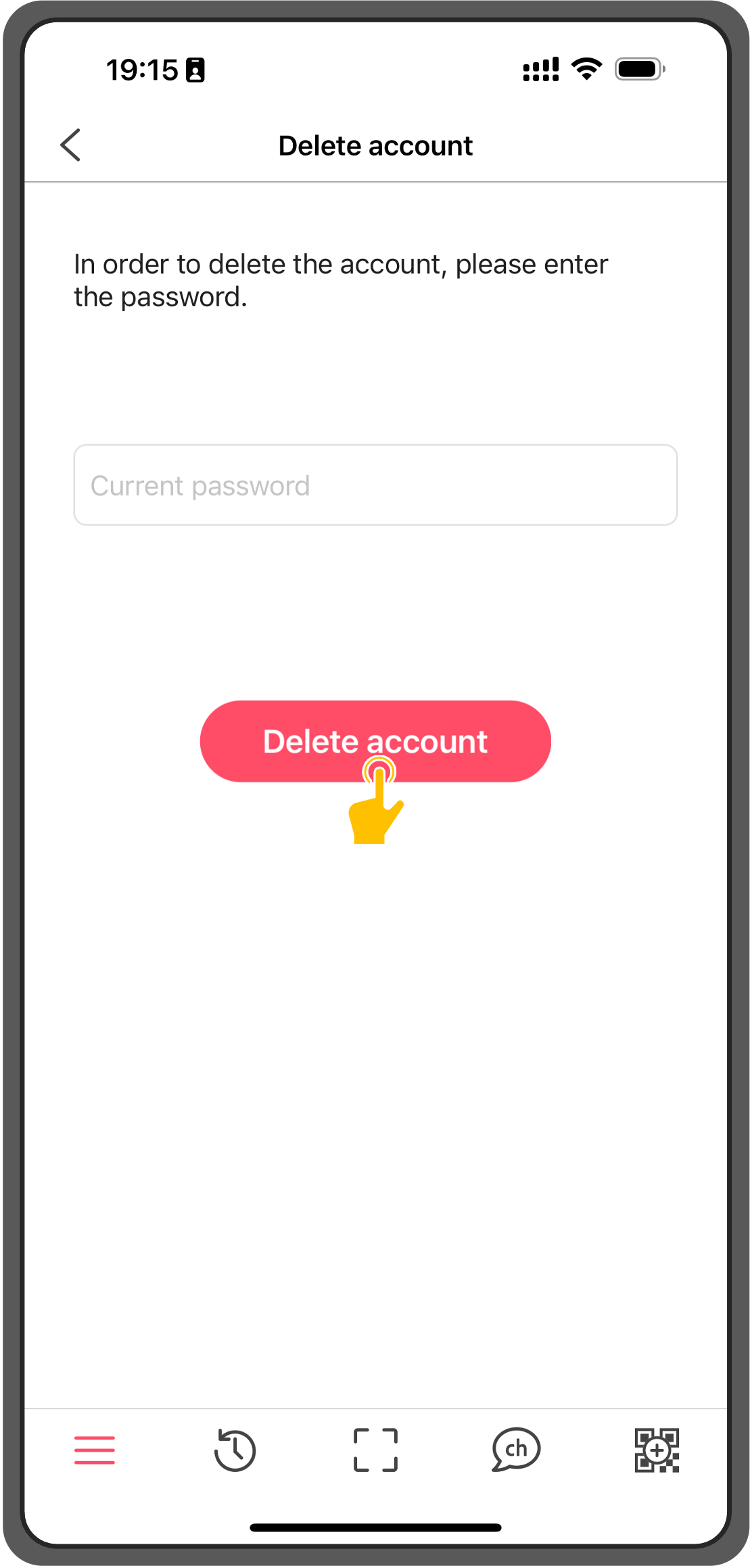
4. Enter the password for the account you want to delete and tap "Delete account".
#### Troubleshooting
If you encounter problems deleting your account, please try the following troubleshooting steps.
### "Delete Account" item is not displayed
If "Delete Account" is not displayed and "Login" or "Register Account" is displayed when you tap "Account", you are not logged in.
Please log in once with the account you are trying to delete and check again.
### Forgot password
If you have forgotten your password and cannot delete your account, you will need to reset your password.
Please log out once and reset your password from "Forgot Password" displayed on the login screen.
### If the problem still persists
If you still cannot delete your account, please send an account deletion request via the [inquiry form](https://support.qrqrq.com/hc/en-us/requests/new?service=qrqr_manager&qrqrManagerUserId=noId&hsLang=en-us).
In that case, please enter the email address registered in the QRQR app in the "Email Address" field for identity verification.
- [QRQR - QR Code Reader](https://support.qrqrq.com/en-us/qrqr-qr-code-reader?hsLang=en-us#main-content)
- [How to use](https://support.qrqrq.com/en-us/qrqr-qr-code-reader?hsLang=en-us#how-to-use)
- [Troubleshooting](https://support.qrqrq.com/en-us/qrqr-qr-code-reader?hsLang=en-us#troubleshooting)
[](http://www.arara.com)
[mailto:email@email.com](mailto:email@email.com)
Copyright 2022 arara inc.